Canopy Surveys · Your next step
Tell CMS that Canopy is your survey vendor.
Your agreement with Canopy is signed. One step is left, and only your facility can do it: in CMS’s Hospital Quality Reporting system (HQR), authorize Canopy Associates to submit your HCAHPS data. It takes about ten minutes and takes effect the moment you save it. Until it is done, CMS will not accept the survey data we send for you.
Or follow the steps below. CMS’s own videos are included.
Before you start.
Who does it
Your facility’s HQR Security Official, or any HQR user who has the Vendor Management permission. In most facilities that is the quality director or someone in IT. Not sure who yours is? See below.
What you need
Your HARP user ID and password, the login CMS uses for HQR. And Canopy’s name exactly as HQR lists it: Canopy Associates.
Two things to know
Keep the Survey Solutions row. Your July–September surveys are still submitted through it (step 3 explains). And do this now. It takes effect immediately, and CMS accepts nothing from us until it is in place.
Step by step: HCAHPS, in HQR.
Eight steps, one screen each. The words in grey boxes are the exact labels on CMS’s screens.
-
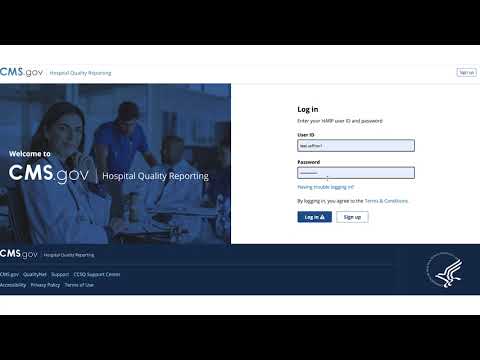
Sign in to HQR.
Go to hqr.cms.gov and sign in with your HARP user ID and password. HQR is CMS’s Hospital Quality Reporting system, and HARP is the login CMS uses for it, the same one your facility uses for its other CMS quality reporting. Can’t sign in? See the sign-in section below.
CMS video · CMS · 0:58 · youtube.com/watch?v=2dWtOovtDuI -
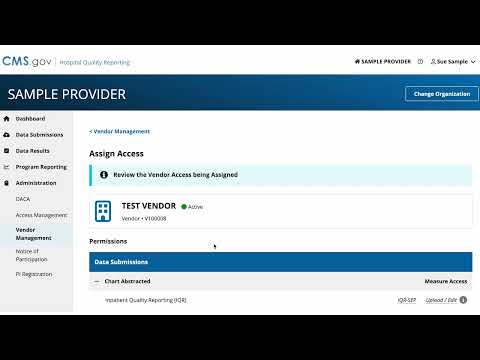
Open Vendor Management.
In the menu on the left, choose Administration, then Vendor Management. The list that opens shows every vendor your facility has authorized.
-
Keep the Survey Solutions row. Change only its end quarter.
You will see a row for Survey Solutions. That is the registration your July–September surveys are still being submitted under. Do not remove it and do not suspend it.
At the right end of that row, click the three dots and choose Edit (it may read Edit Access). Set the Discharge End Quarter to Q3 2026, the July–September quarter. Leave the Submission End Date empty. Save.
Why this matters
Your July–September data goes to CMS under the Survey Solutions row in January. Ending its discharge quarter at Q3 2026 lets Canopy start at Q4 without overlapping it. Leaving the submission end date empty keeps that January submission possible. Removing the row would block your own Q3 data.
-
Add Canopy.
Back on the Vendor Management page, click Add Vendor. In the search box type Canopy Associates and choose it from the list that appears.
CMS’s own walkthrough of steps 4 to 8, on today’s screens:
CMS video · CMS, July 2025 · 2:55 · youtube.com/watch?v=MHvOt__rx3o A shorter, older version of the same video
CMS video · CMS, 2021 · 1:07 · youtube.com/watch?v=gmD9wcKLjiM -
Give Canopy HCAHPS access.
On the Assign Access page, under Data Submissions, find HCAHPS and click Add. Change the access from No Access to Upload/Edit.
-
Enter the dates.
Four fields:
- Discharge Start Quarter: Q4 2026 (October–December 2026).
- Discharge End Quarter: tick Do not include an end date.
- Submission Start Date: today’s date.
- Submission End Date: tick Do not include an end date.
-
If a red overlap note appears.
HQR shows it when two vendors cover the same discharge quarter. Check that step 3 saved with Q3 2026 as the Survey Solutions end quarter. Then tick the acknowledgement box and click Confirm. If no red note appears, there is nothing to do here.
-
Save, then let us know.
Click Apply & Close, then Save & Close. A notice at the top of the page confirms the vendor permission was created. That is it: the authorization is in effect.
Then tell Jake it is done, and we confirm it from our side.
or call (309) 692-6790
One more thing, in late January
After January 21, 2027: close out the Survey Solutions row.
Your July–September data is due to CMS by January 13, 2027, and CMS’s window for corrections closes January 20. After that, go back to Vendor Management, open the Survey Solutions row the same way as in step 3, and give it a Submission End Date. CMS’s own advice is to enter that date only after all data has been sent. We will remind you when the time comes.
If Canopy also runs your OAS CAHPS surveys.
OAS CAHPS, the outpatient and ambulatory surgery survey, has its own website and its own authorization, separate from HQR. Your facility’s OAS CAHPS Survey Administrator, the person who registered your facility at oascahps.org, does this. Six steps, and the old authorization ends by itself.
-
Sign in at oascahps.org.
-
Choose For Facilities, then Vendor Authorization, then Start an Authorization.
-
Under Select a Vendor, choose Canopy Associates.
-
Under Select Start Date, choose 10/1/2026, the first day of the quarter Canopy starts submitting for you. The form only allows the first day of a quarter. If your Canopy OAS CAHPS surveys start later, choose the first day of that quarter instead.
-
In the Select Facility table, tick each CCN this applies to.
-
Click Save Checked Authorizations. Your previous authorization is ended for you, so there is nothing else to close out. The Vendor Authorization Report shows the change with a green check, and your Survey Administrator receives a confirmation email.
No login yet? Register at oascahps.org/For-Facilities/Register-for-Login-Credentials. Questions about the OAS CAHPS site go to its Survey Coordination Team: 1-866-590-7468 or [email protected]
If no one at your facility can sign in to HQR.
Every facility that reports to CMS has at least one HQR Security Official, usually in quality or IT, and CMS recommends keeping two. If you do not know who yours is, ask your quality director. Three situations, three fixes:
-
You can sign in, but there is no Vendor Management option.
Your Security Official can give your account the Vendor Management permission, or do the steps themselves.
-
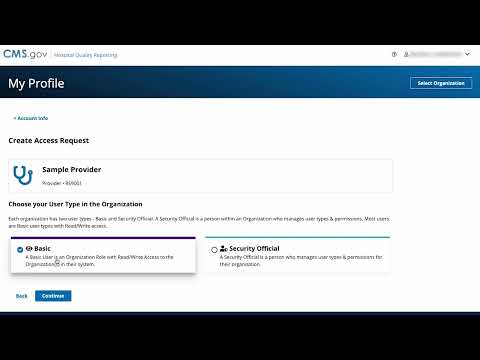
You have no HARP account, or your facility is not on your account.
Create one at harp.cms.gov, then request access to your facility in HQR. Your Security Official approves the request.
CMS video · CMS · 2:21 · youtube.com/watch?v=vhnuJB_jNM8 -
The person who was the Security Official has left.
CMS has a short video on requesting the role when no Security Official exists. The CCSQ Service Center (below) can walk you through it too.
CMS video · CMS · 1:35 · youtube.com/watch?v=qe0nRfMTnYM
Rather do it together?
Thirty minutes with Jake, on a screen share.
You sign in and drive. Jake stays on the line and talks you through each screen until the confirmation notice appears. Most facilities are done in ten minutes.
Jake Hanson, Chief Sales Officer, Canopy · (309) 692-6790 · [email protected] · cal.com/jakehanson/30min
Help from CMS
The CCSQ Service Center
CMS’s help desk for HQR access and Vendor Management questions. If a screen looks different from these steps, they can see your account.
866-288-8912
TTY 877-715-6222 · Monday–Friday, 8 AM–8 PM Eastern